
Summary
Key points of this document
- The more you create with AI, the more important the production deployment procedure becomes.
- First, define the scope.
- Separate the scope delegated to the AI agent from human judgment.
Overview
The faster an AI agent can make WordPress modifications, the more a verifiable procedure is needed for production deployment. Assuming WordPress on Xserver, we will organize a series of operations including SSH connection, WP-CLI verification, backup, rsync dry run, production deployment, validation, and rollback.
The more you create with AI, the more important the production deployment procedure becomes.
Using an AI agent allows for quick progress in WordPress theme modifications, template adjustments, CSS changes, minor plugin fixes, and unnecessary code cleanup. Creating modification proposals and checking diffs, which traditionally took several hours, can now be done more easily through dialogue.
On the other hand, the speed at which AI can make corrections and the ability to safely deploy them to a production site are separate issues. WordPress is a public site, and many elements are interconnected, such as the admin screen, database, uploaded images, contact forms, SEO, and cache. Careless deployment of changes can lead to display issues, contact form outages, admin screen errors, and impacts on search traffic.
In this article, assuming WordPress running on Xserver, we will organize the basic procedure for safely deploying changes created by an AI agent to production using SSH and WP-CLI. The goal is not to completely delegate production work to AI, but to leverage AI's speed while ensuring human verification before publishing.
First, define the scope.
This article deals with a typical WordPress site running on Xserver. The work scope will primarily focus on theme files, child themes, custom plugins, static assets, configuration checks, cache clearing, and simple operational verification.
Large-scale migrations of databases, complex permission changes for membership sites, order processing for e-commerce sites, and major overhauls involving external API integrations require more careful planning. Especially for sites directly impacting sales or customer information, staging environments, work windows, rollback procedures, and communication with stakeholders must be designed separately.
Furthermore, server contract plans, SSH settings, directory structures, PHP versions, and WordPress installation paths vary by environment. The commands in this article are not meant to be pasted as-is, but should be adapted to your specific environment.
- Scope: Themes, child themes, custom plugins, CSS, JavaScript, minor PHP fixes.
- Out of scope: Production DB schema changes, e-commerce payments, member permissions, large-scale migrations, critical sites with short downtime tolerance.
- Prerequisite: Confirm SSH connectivity, WP-CLI availability, backup method, and recovery procedures in advance.
Separate the scope delegated to the AI agent from human judgment.
AI agents are well-suited for tasks such as creating diffs, identifying impact areas, proposing verification commands, creating checklists, and organizing rollback procedures. Code interpretation and generating modification proposals are AI's strong suits.
On the other hand, you must not provide SSH private keys, server passwords, production database credentials, WordPress administrator passwords, or customer information to AI. Instead of fully entrusting production environment operations to AI, the basic flow should be: a human connects, a human executes, and a human verifies the results.
When making requests to AI, do not paste environment information as-is; instead, abstract it. For example, conceal actual domains and usernames, and only convey theme names or scope of changes. It is safer to consider AI as responsible for generating decision-making materials, and humans as responsible for making publication decisions.
Fix the overall flow.
What's important for production deployment is to avoid using different methods each time. Urgent fixes are more prone to missed checks. Even if AI speeds up modifications, the process until publication should be fixed, and the state before and after the work should be recorded.
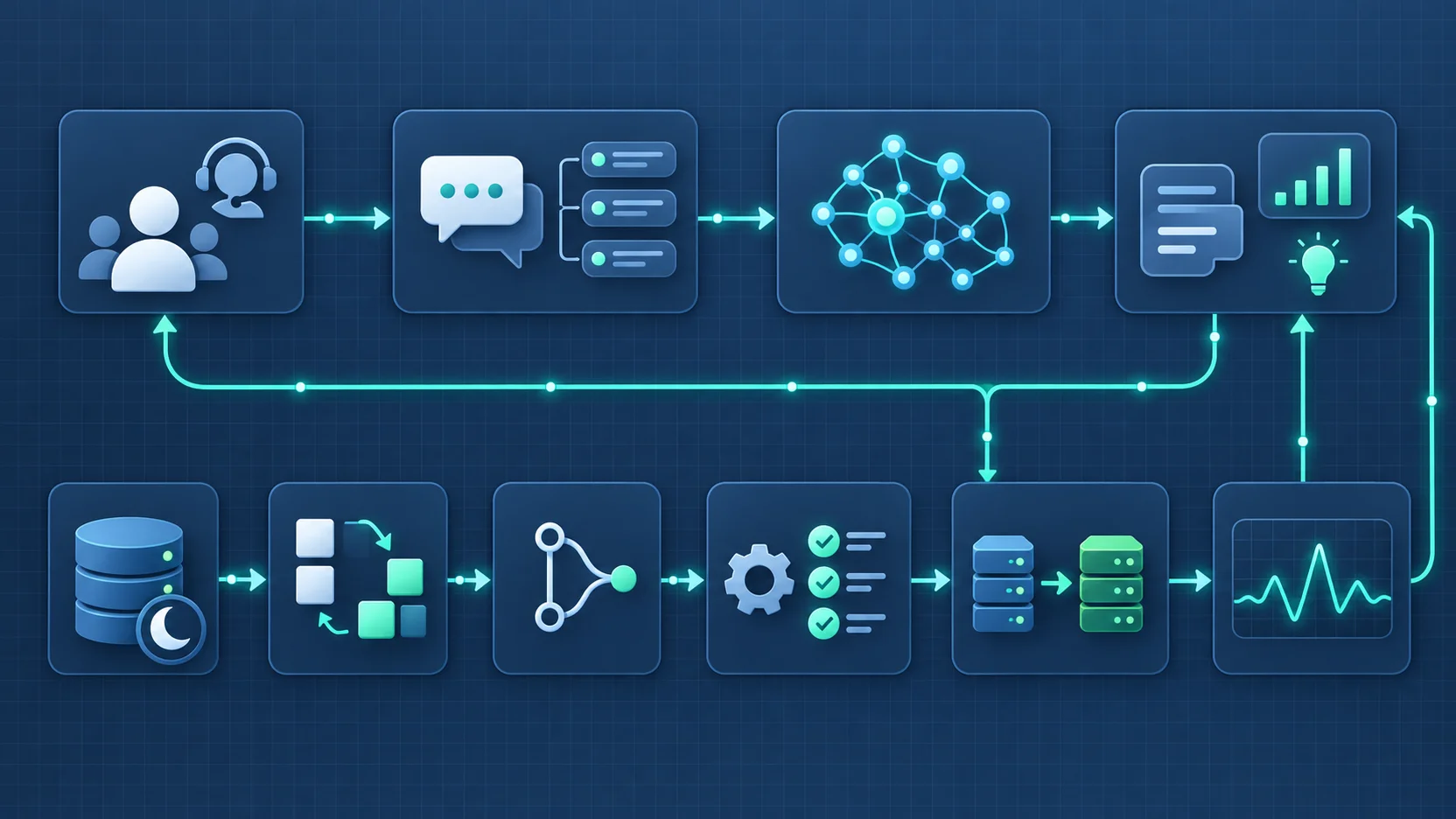
The basic flow is: understanding changes, local verification, backup, SSH connection, WP-CLI verification, rsync dry run, production deployment, cache clearing, display confirmation, log confirmation, and rollback preparation. By maintaining this order, you will know how far back to revert if an issue occurs.
Also, keep a work log. Briefly recording the date and time of work, responsible person, target site, deployed branch or commit, executed commands, and post-deployment verification results will make it easier to investigate causes later.
- Create modification proposals with AI, and a human verifies the diffs.
- Verify the display and admin screen locally or on staging.
- Back up production files and the database.
- Use
rsync --dry-runto check the diffs that will be applied to production.
- Use
- After production deployment, check the status with WP-CLI and a browser.
Verify SSH connection.
On Xserver, enable SSH settings from the server panel and connect using public key authentication. First, ensure you can stably connect via SSH from your own device before deploying to production.
Connection information consists of server ID, hostname, port number, username, and private key location. In actual operations, instead of typing long commands every time, registering the connection destination in your local SSH configuration can reduce errors.
After connecting, it's also important not to immediately move to the working directory. First, `pwd`,`ls`,`whoami` to confirm your current location and user. Make it a habit to perform this initial check to avoid accidentally working on similarly named servers or different sites.
- SSH configuration example:
`Host xserver-wordpress`,`HostName svxxxx.xserver.jp`,`User Server ID`,`Port 10022`,`IdentityFile ~/.ssh/xserver_key`. - Connection verification:
ssh xserver-wordpress. - Current location check:
pwd,whoami,ls -la. - Work location check: For the target domain,
public_htmlalways confirm if it's under .
Check if WP-CLI is available.
WP-CLI is the official tool for checking and operating WordPress from the command line. It allows you to check WordPress versions, list plugins, check themes, export databases, clear caches, and more, all without opening a browser.
Xserver provides an environment where WP-CLI can be used, but its availability and path need to be confirmed depending on the environment. Before production work, in the target WordPress installation directory, confirm that wp --info or wp core version are working.
When WP-CLI is available, pre- and post-deployment checks become stable. Even if you cannot log in to the admin screen, you can check plugin and theme statuses, which is useful for recovery during troubleshooting.
- WP-CLI check:
wp --info. - WordPress core check:
wp core version. - Site URL check:
wp option get siteurl,wp option get home. - Theme check:
wp theme list. - Plugin check:
wp plugin list.
Always take a backup before deploying to production.
For WordPress production deployments, proceed only after ensuring that both files and the database can be restored. Even if only theme files are modified, plugin updates or setting changes can sometimes affect the database.
For backups, the ability to restore is more important than the act of taking them. Confirm the backup file's save location, filename, acquisition date/time, and restoration procedure. Taking a backup before work is meaningless if you don't know where it's stored, can't restore it, or if it's for the wrong target.
Even for small modifications, at a minimum, prepare a copy of the target theme or plugin and a database export. For important sites, also use Xserver's backup features and manual downloads.
- DB backup example:
wp db export ~/backup/example-$(date +%Y%m%d-%H%M%S).sql. - Theme backup example:
cp -a wp-content/themes/your-theme ~/backup/your-theme-$(date +%Y%m%d-%H%M%S). - Backup confirmation:
ls -lh ~/backupto check size and creation date/time. - Restoration policy: Decide before starting work whether to restore only files or also the database.
A human will review the diffs generated by AI.
Always review changes made by AI agents using diffs. Even if the appearance matches, you need to check if unnecessary files have increased, if confidential information is mixed in, or if the WordPress template hierarchy has been broken.
During review, check the list of changed files, deleted files, added dependencies, PHP syntax errors, and the scope of CSS and JavaScript impact. If the AI has touched a wide range, it may be necessary to narrow down the changes before deploying to production.
Especially in WordPress,functions.php, pay attention to changes in template files, custom plugins, contact form related files, SEO related files, and cache related files. Even small fixes can affect the entire site.
- Diff confirmation: Check for changed files, deleted files, generated artifacts, and inclusion of configuration files.
- PHP check: If possible locally, use "
php -l" to check for syntax errors. - Confidential information check: Confirm that passwords, API keys, SSH settings, and personal information are not included.
- Display confirmation: Check on PC, smartphone, main pages, and contact forms.
Check the diffs that will go into production with an rsync dry run.
Before deploying to production,rsync --dry-run" to check the files that will actually be deployed. A dry run is a process to see the diffs that are scheduled for deployment. If unintended deletions or unnecessary file deployments are found here, they can be stopped before going to production.
--delete" requires particular caution. Production files that do not exist locally will be targeted for deletion. In WordPress, exclusion settings are used to prevent accidental deletion of uploaded images, caches, generated files, and configuration files that only exist on the server.
Even when AI suggests rsync commands, humans must confirm the exclusion targets.wp-content/uploads, cache directories, and environment-specific configuration files are often excluded from deployment.
- Dry run example:
rsync -avz --delete --dry-run ./wp-content/themes/your-theme/ xserver-wordpress:/home/serverid/example.com/public_html/wp-content/themes/your-theme/. - Exclusion example:
--exclude .DS_Store --exclude node_modules --exclude .git --exclude .env. - Confirmation points: Check if deletion targets, uploaded images, caches, and environment-specific files are not included.
- If anything feels off, review the command and target directory without deploying.
Production deployment should be executed with a narrow scope.
If there are no issues with the dry run, proceed with production deployment. Narrow down the deployment scope as much as possible. Instead of synchronizing the entire WordPress installation, send only the necessary scope for the current changes, such as themes, child themes, custom plugins, and required static files.
During deployment, ensure that other workers do not touch the same files. If someone is directly modifying files via the theme editor in the admin panel, they might be overwritten by rsync. It is safer to inform stakeholders before starting work.
After deployment, check the basic status with WP-CLI. Look at the WordPress core, themes, plugins, site URL, and the presence of fatal errors. Clear caches as needed and check main pages in the browser.
- Deployment example:
rsync -avz --delete ./wp-content/themes/your-theme/ xserver-wordpress:/home/serverid/example.com/public_html/wp-content/themes/your-theme/. - Status check:
wp core version,wp theme list,wp plugin list. - Cache confirmation: Check the impact of cache plugins, server cache, and browser cache.
- Work log: Record deployment date/time, target files, and confirmation results.
After deployment, check not only the display but also the functionality.
After production deployment, merely seeing the top page display is insufficient for confirmation. Check the changed areas, related templates, smartphone display, contact forms, search, post details, static pages, admin screen, login, image display, etc.
In WordPress, if caching is active, problems may not be visible in the display. Conversely, issues might only appear after clearing the cache. Be aware of the cache status during confirmation.
For error checking, examine the browser console, server error logs, and WordPress debug logs. Since debug logs are not always enabled on all sites, deciding on a log checking method beforehand will speed up recovery.
- Screen check: Top page, main static pages, post details, inquiry, search, 404, smartphone display.
- Function check: Form submission, email notification, login, admin screen, image upload.
- Log check: PHP errors, JavaScript errors, WordPress debug logs, server logs.
- SEO check: Confirm title, description, canonical, structured data, and check for unintended noindex.
If a problem occurs, ensure it can be reverted without hesitation.
If a problem occurs during production deployment, spending too much time investigating the cause will prolong the impact on the live site. The important thing is to decide in advance the criteria for whether to investigate or revert.
If there's a minor display issue with a clear cause, it can be fixed on the spot and redeployed. On the other hand, if you can't access the admin screen, inquiries aren't working, the entire site shows a white screen, or critical functions like e-commerce or reservations are affected, it's necessary to decide to revert to a backup first.
Rollbacks may involve reverting only files, or both files and the database. Use the backup taken before the operation, and after reverting, re-check the display, functions, and logs.
- File recovery: Restore backed-up themes and plugins to their original locations.
- DB recovery: Only if necessary
wp db import backup.sqlconsider. - Reversion decision: Revert quickly for critical function stoppage, white screen, inquiry stoppage, or errors with unknown causes.
- Recurrence prevention: Record the cause, detection method, and next checklist items in the operation log.
When integrated into operations, AI development becomes safely faster.
WordPress operation using AI agents is not a one-time trick, but becomes effective when structured as a standard operational model. Correction requests, AI-generated diffs, human review, staging confirmation, production deployment, verification, and recording should follow the same flow.
Even with a single person in charge, using a checklist can reduce omissions. If multiple people are involved in operations, sharing AI request prompts, deployment procedures, confirmation items, and rollback procedures makes it less prone to individual dependency.
AI increases work speed, but the responsibility for publication remains with people and the company. Therefore, the more AI's power is used, the more it is necessary to establish procedures, confirmations, records, and recovery mechanisms.
References
This article refers to Xserver's official manual and WP-CLI official documentation. Server specifications, admin screens, and WP-CLI command specifications may be updated, so please check the latest official information during actual operations.
- Xserver SSH settings: https://www.xserver.ne.jp/manual/man*server*ssh.php
- Xserver WP-CLI: https://www.xserver.ne.jp/manual/man*tool*cli.php
- WP-CLI Commands: https://developer.wordpress.org/cli/commands/
Entrust speed to AI, and people ensure safe publication.
Using AI agents speeds up WordPress modifications. However, automating all the way to production deployment does not guarantee safety. Rather, precisely because it can be done quickly, procedures for diff confirmation, backup, dry run, verification, and rollback become crucial.
Combining Xserver, SSH, WP-CLI, and rsync can relatively simplify WordPress production deployment. The important thing is to follow the same flow every time and ensure that the state before and after the operation can be confirmed.
AI increases the speed of execution, while people are responsible for publication decisions and safety confirmation. With this division of roles, WordPress operations can more easily achieve both speed and peace of mind.